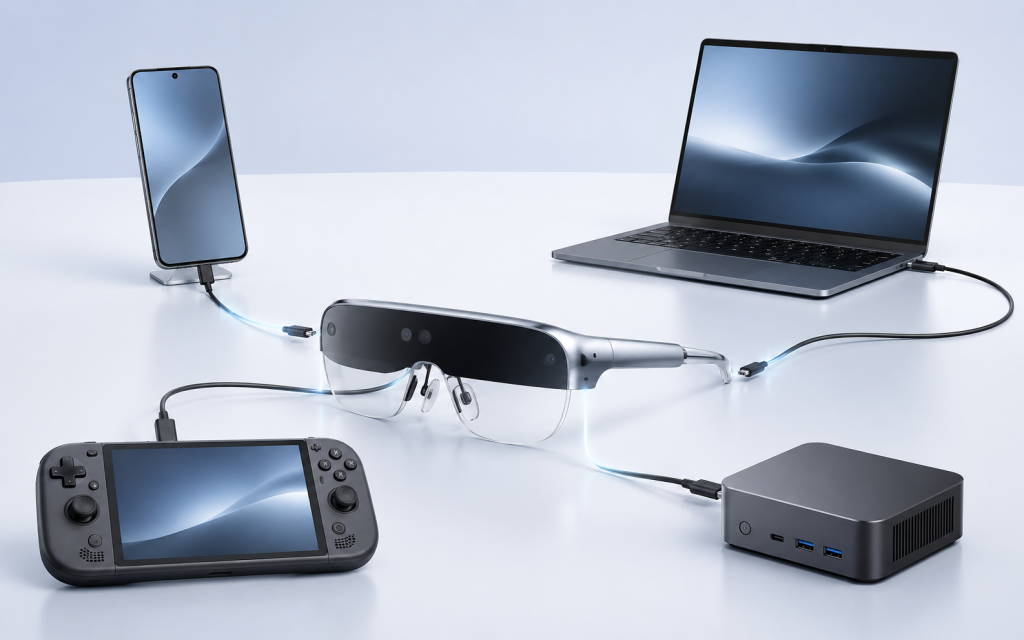
Not every USB-C port works with AR glasses because USB-C describes a connector, not a complete set of video capabilities. Display-first AR glasses normally need a source device that can output video over USB-C, often through DisplayPort Alt Mode. The correct port, a video-capable cable, compatible source and display roles, sufficient power, and any required adapter must all work together. A port may charge the glasses or transfer USB data without carrying a display signal. That is why two identical-looking USB-C ports—even on the same computer—can produce different results. Compatibility must be checked across the entire connection path, not inferred from the plug shape.
What Buyers Should Know
- USB-C is the physical connector. It does not automatically confirm USB data speed, USB Power Delivery, DisplayPort, Thunderbolt, or USB4 support.
- Direct display glasses need a video source. For a typical Type-C connection, the phone, computer, tablet, handheld, or controller must expose a compatible video-output path.
- Power and video are separate capabilities. Glasses can receive enough power to light an indicator or start electronics while receiving no usable display signal.
- The cable participates in the connection. A charging cable or USB 2.0 Type-C cable may not include the signal paths required for DisplayPort Alt Mode.
- Direction matters. Sending video from USB-C to an HDMI monitor is not the same operation as converting an HDMI source into USB-C video for display glasses.
- Hubs and docks add variables. Their upstream port, downstream ports, video routing, power budget, and supported modes all matter.
- Compatibility belongs to an exact configuration. A successful test applies to the specified source model, port, cable, adapter, power path, software state, and glasses configuration.
This explains why a product demo can work on one laptop and fail on another even when both devices have USB-C ports. The visible connector is only the entry point to a larger system.
USB-C Describes the Connector, Not Every Capability
USB-C became popular because the connector is compact, reversible, and flexible. That flexibility also creates confusion: manufacturers can implement different combinations of data, power, and alternate modes behind the same physical opening.
The USB-IF language and packaging guidelines state that USB Type-C is not interchangeable with USB 3.2, USB4, or USB Power Delivery. Those protocols and features may be present, but the connector name alone does not establish them. USB-IF also notes that product performance and power capabilities vary and should be identified by the manufacturer.
For AR display glasses, at least four questions must be separated:
- Does the port provide power?
- Does it carry ordinary USB data?
- Can it output display video?
- Does it support the exact mode, bandwidth, cable, and device role required by the glasses?
A “yes” to one question does not answer the others. A phone may charge an accessory but have no wired video output. A computer port may support a storage drive and charging while lacking DisplayPort Alt Mode. A high-power charging cable may be unsuitable for display transport. Conversely, the product specification may list video support even when the user has selected a different USB-C port on the same machine.
This is why visual inspection is unreliable. Some manufacturers place a DisplayPort or Thunderbolt symbol beside a capable port, while others rely on manuals or online specifications. The absence or presence of an icon should be treated as a clue, not a substitute for checking the exact model documentation.
What DisplayPort Alt Mode Actually Does
USB normally carries USB protocol traffic. An alternate mode allows selected USB-C high-speed lanes to carry another protocol. DisplayPort Alt Mode uses that mechanism to transport DisplayPort audio and video through the USB-C connector.
VESA’s introduction to DisplayPort Alt Mode explains that compatible USB-C source devices can deliver DisplayPort A/V over the connector and can drive DisplayPort displays or appropriate adapters. The important phrase is source devices that support DisplayPort Alt Mode. The capability is implemented in hardware and firmware; it is not created by the reversible plug.
The official VESA/USB-IF DisplayPort Alt Mode presentation illustrates a DisplayPort source—such as a phone, tablet, PC, set-top box, game console, or dock output—connected to a DisplayPort sink such as a monitor or display input. Display-first AR glasses normally occupy the display side of that relationship.
During connection, the devices identify compatible modes and establish the signal path. On supported systems this happens automatically; there usually is not a general user setting that can add DP Alt Mode to a port that lacks the hardware. Microsoft’s USB-C documentation describes alternate-mode selection as a function of connector hardware, firmware, and drivers rather than a simple operating-system switch.
DP Alt Mode also does not promise that every display format will work. Resolution, refresh rate, color format, audio, stereoscopic modes, and other behaviors still depend on the source, graphics subsystem, cable, display electronics, and negotiated configuration.
The Seven-Part Compatibility Chain
A reliable connection requires more than two matching plugs. It helps to evaluate seven linked components.
| Link | Required role | Typical failure |
|---|---|---|
| 1. Application and operating system | Render content and enable an external display | Display disabled, unsupported mode, software or driver issue |
| 2. Graphics subsystem | Produce a compatible display stream | Port not routed to graphics output or display resources unavailable |
| 3. USB-C source port | Support video output / DP Alt Mode or another confirmed path | Data and charging work, but no display mode exists |
| 4. Cable | Carry the required high-speed and alternate-mode signals | Charge-only or USB 2.0 cable lacks the needed signal paths |
| 5. Hub, dock, or adapter | Preserve or correctly convert the video direction | Downstream port is data-only, conversion direction is wrong, or mode is not passed through |
| 6. Power path | Power glasses and any active converter | Source power is insufficient or converter needs separate power |
| 7. AR glasses | Accept the input format and present it through the display system | Unsupported timing, mode, firmware state, or hardware fault |
If any link fails, the user may see a black screen, a connection warning, intermittent video, reduced resolution, missing audio, or no device detection. Troubleshooting becomes faster when each link is tested separately.
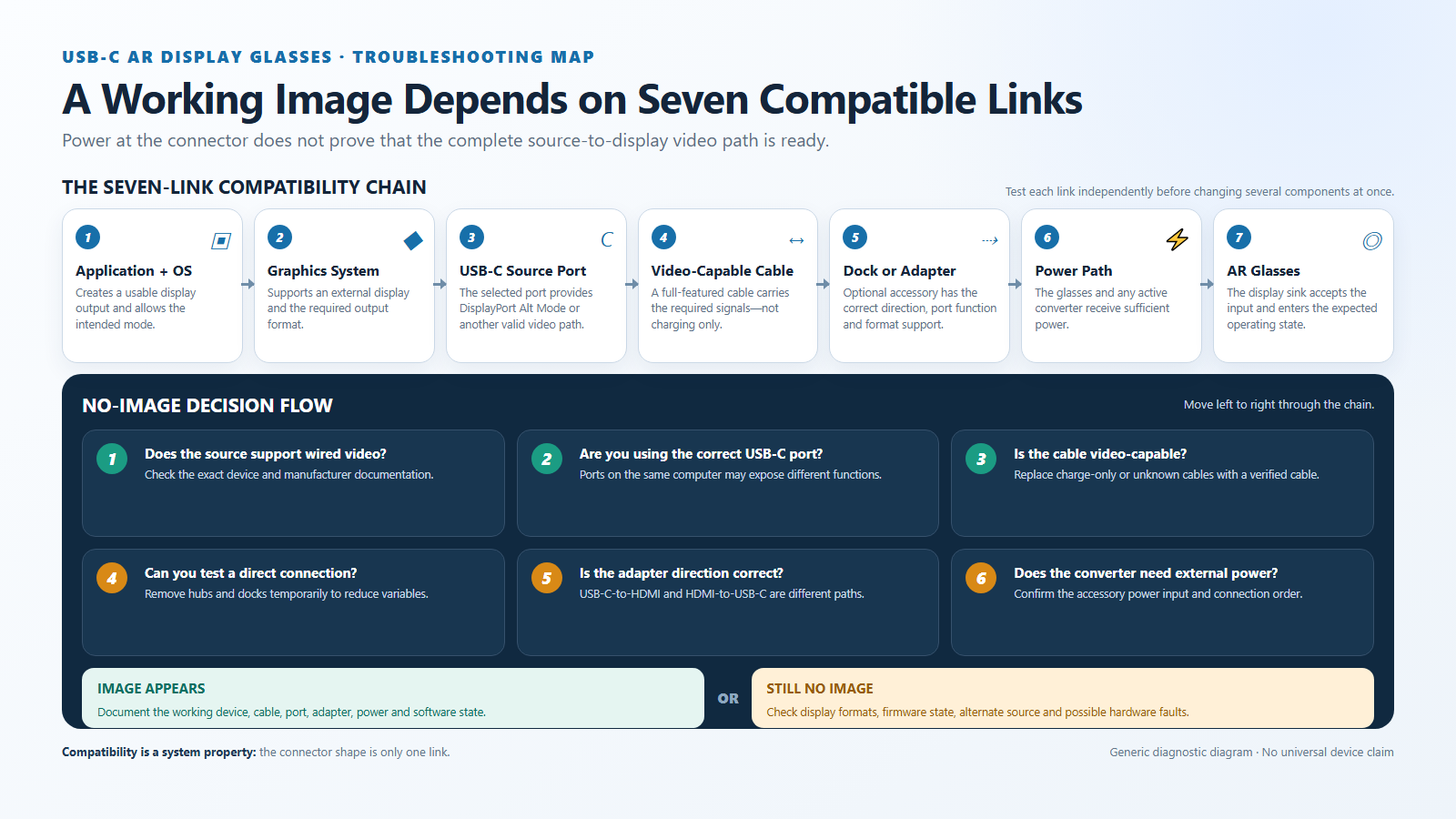
The chain also explains why a universal “compatible phones” statement is risky. A model name may cover regional versions, different processors, different operating-system builds, or different port implementations. Accessories and firmware can change the final path. Compatibility records should therefore include the exact test configuration and date.
Why Power Without Video Is Possible
One of the most confusing symptoms is that the glasses appear to receive power but show no image. This does not prove that the glasses or source are defective.
Power delivery begins through dedicated USB-C connection behavior. Video requires a separate supported mode and successful negotiation. The VESA/USB-IF material shows USB 2.0 and power availability alongside DP Alt Mode configurations, which illustrates that power and display traffic are related within the connector but remain distinct functions.
Several scenarios can produce power without video:
- the source port supplies basic power but has no video output;
- the correct DP Alt Mode exists on another port;
- the cable carries charging conductors but not the required high-speed lanes;
- a hub powers its downstream USB-C port but does not expose display output on that port;
- an active converter receives insufficient external power;
- alternate-mode negotiation fails even though initial power is present;
- the source detects a display but chooses an unsupported or disabled display state.
Microsoft documents “display connection might be limited” and “use a different USB port” notifications for situations where a USB-C display device supports an alternate mode but the connected system or port does not. Its USB-C troubleshooting guidance recommends confirming that the PC or phone, external display, cable, and selected port support the same display mode.
For support teams, “Does the indicator turn on?” is therefore only a power check. The next questions should be “Does the source specification list wired video output?” and “Does the operating system detect an external display?”
Why the Cable Matters
USB-C cables can look identical while implementing different functions. Some are intended mainly for charging. Others support USB 2.0 data. Full-featured cables include the high-speed paths needed for capabilities such as USB 3.x and DisplayPort Alt Mode.
USB-IF’s guidelines state that a USB 2.0 Type-C cable does not implement the USB 3.2/USB4 TX/RX signal contacts or the Alt Mode SBU signals. A cable can therefore charge a device and transfer basic data while remaining unsuitable for a display connection.
The VESA/USB-IF presentation describes DP Alt Mode over a standard full-featured USB-C to USB-C cable designed to include DisplayPort. In a buyer-facing test, the most useful starting point is the cable supplied or approved for the glasses. If another cable is tested, record its exact model and claimed display capability rather than describing it only as “a Type-C cable.”
Cable-related symptoms may include:
- power but no image;
- image appearing only after reconnecting;
- intermittent black screens;
- reduced display mode or unstable operation;
- failure through an extension cable that does not occur with a direct cable;
- different results after replacing a long or damaged cable.
A cable change is a valid diagnostic step, but it should use another known video-capable cable. Replacing one unknown cable with another unknown cable does not isolate the cause.
Why Adapter Direction Matters
Adapters are described by their signal direction, even when marketing names make that direction easy to overlook.
A common USB-C-to-HDMI adapter expects a USB-C device to act as the video source and sends the converted signal to an HDMI monitor or television. VESA specifically describes DP Alt Mode source devices using an appropriate adapter to drive HDMI, DVI, or VGA displays.
An HDMI-output game console or desktop graphics card presents the opposite problem. The HDMI connector is the source, while the AR glasses expect video on their USB-C input. A passive mechanical adapter cannot simply reverse the earlier path. The setup needs a purpose-built conversion solution designed to accept HDMI or DisplayPort from the source and output the format required by the USB-C display. That active solution may also need USB power to operate itself and to supply the glasses.
Before purchasing or bundling an adapter, confirm:
- Which connector is the input?
- Which connector is the output?
- Does it explicitly support a USB-C display or AR glasses as the sink?
- What resolutions and refresh rates are supported in that direction?
- Does it carry audio?
- Does it require a separate USB power connection?
- Has the exact source, adapter, cable, and glasses combination been tested?
Terms such as “bidirectional” should also be verified against the supported modes. Physical connector direction, DisplayPort signal direction, USB data, and power flow are separate considerations.
Hubs, Docks, and Power Paths
A hub or dock can make a connection more convenient, but it does not turn every downstream USB-C port into a display output.
Many docks use one upstream USB-C connection to a computer and expose HDMI or DisplayPort outputs. Their additional USB-C ports may be intended for data or charging rather than video. Other products provide a video-capable USB-C downstream port, but that feature must be stated in the specification.
Microsoft’s troubleshooting page notes that external hubs or docks can be a cause of limited USB-C functionality. This does not mean hubs are inherently unsuitable. It means the hub becomes another device whose supported modes, topology, bandwidth, and power behavior must be checked.
During diagnosis, start with the shortest direct path:
known compatible source → known video-capable cable → AR glasses
If the direct connection works, add the hub, extension, dock, converter, or power injector one item at a time. This isolates the component that changes the result.
Power paths require similar attention. The source may provide power directly to the glasses in a C-to-C connection. An HDMI-to-USB-C converter may require a separate USB input to power the converter and glasses. A handheld gaming setup may depend on a dock or powered adapter to establish both its video-output state and the display power path. These configurations should be documented instead of reduced to “connect with USB-C.”
Device-Specific Scenarios
Different source categories fail for different reasons.
Smartphones and tablets
Check the exact model specification for wired display output, DisplayPort over USB-C, desktop mode, screen mirroring, or another supported external-display function. Do not infer video capability from charging speed or USB data version. Confirm whether the operating system requires a prompt, desktop-mode selection, or screen-mirroring permission.
Laptops
Read the port diagram in the manual. A laptop may have multiple USB-C ports with different functions. Microsoft’s USB-C troubleshooting notifications explicitly cover systems where one port lacks DisplayPort or Thunderbolt support while another port provides it. Also check external-display limits when other monitors or docks are already connected.
Desktop computers
A front-panel or motherboard USB-C port may support data without being routed to the discrete graphics card’s display output. Some systems provide video-capable USB-C through the motherboard, graphics card, add-in hardware, or a compatible dock; others do not. The system and motherboard manuals are more reliable than the connector shape.
If the computer supplies only HDMI or full-size DisplayPort video, use a conversion path designed for an HDMI/DP source and a USB-C display sink. Confirm external power requirements and the supported output mode.
Game consoles and handheld devices
Some handhelds expose standard DP Alt Mode from USB-C. Other consoles enable video only through a dock, adapter, or device-specific power state. Avoid broad C-to-C compatibility claims—especially for products whose display behavior depends on a dock or proprietary implementation. Test the exact console generation, firmware, dock, power supply, adapter, and cable.
Optional media or Android controllers
A controller designed for the glasses can reduce dependence on a phone and provide a known content source. It should still be listed as optional unless included in the selected configuration. Its successful operation does not prove that unrelated phones or computers share the same USB-C video capability.
A Step-by-Step Troubleshooting Flow
Use this sequence when the glasses power on but show no content.
- Establish a known-good baseline. Test the glasses with a source and cable already confirmed to work. This separates a possible glasses fault from a new-source compatibility problem.
- Read the exact source specification. Look for DisplayPort over USB-C, DP Alt Mode, Thunderbolt with display support, USB4 display support, or an explicit external-display feature.
- Choose the correct port. Check the device’s port diagram and try the documented display-capable port.
- Connect directly. Remove hubs, extensions, docks, capture devices, and nonessential adapters.
- Use a known video-capable cable. Start with the supplied or approved cable, then test another qualified cable if needed.
- Check display detection. On a computer, look for the external display in system settings and review any USB-C or display notifications.
- Simplify the display mode. Start with a common resolution and refresh rate supported by the glasses rather than forcing an advanced mode.
- Verify adapter direction. Confirm that the adapter accepts the source connector and outputs to a USB-C display.
- Verify power. Connect any required power input for the converter or dock using the specified supply.
- Update and retest carefully. If appropriate, update graphics, USB-C, dock, or system firmware, then change only one variable at a time.
- Record the result. Note the source model, OS/firmware version, port, cable, adapter, power supply, display mode, audio result, and date.
Microsoft’s USB-C interoperability test procedures treat device enumeration, alternate-mode negotiation, charging, port orientation, and real-world peripheral combinations as separate checks. A commercial compatibility process should adopt the same principle: verify each function instead of treating “connected” as a single outcome.
Where This Product Fits
Yosiya’s Smart AR Display Glasses use a Type-C display connection and are positioned as a wearable private display terminal.
| Entity | Description |
|---|---|
| Brand | Yosiya |
| Solution | Smart AR Display Glasses |
| Connection | 1.5m Type-C cable in the reference configuration |
| Direct connection requirement | Compatible source with USB-C video output / DisplayPort Alt Mode |
| Other source types | HDMI or DisplayPort sources may require a compatible directional adapter and power path |
| Optional component | Android controller |
| Compatibility promise | Confirmed configurations only; do not assume every USB-C device works |
The current Smart AR Display Glasses solution page provides the reference product context. For an OEM/ODM project, compatibility should be evaluated against the target market’s actual phones, computers, consoles, handhelds, docks, and accessories.
The goal is not to create an unrealistically long universal compatibility list. It is to identify the priority devices for the intended sales channel, define the required connection kit, and provide support materials that explain which combinations are direct, adapted, optional, or unsupported.
Compatibility Information OEM Buyers Should Collect
Before requesting a sample test, send the supplier a structured device list.
| Information | Example of the required detail | Why it matters |
|---|---|---|
| Source category | Phone, laptop, desktop, console, handheld, controller | Determines the likely video path |
| Exact manufacturer and model | Full model and regional variant | Similar product names may have different ports |
| Operating system / firmware | Version and build where relevant | Display behavior can change after updates |
| Intended USB-C port | Port location and manual description | Different ports may support different functions |
| Published video capability | DP Alt Mode, USB4 display, Thunderbolt display, HDMI, or DP | Establishes the source interface |
| Cable | Supplied cable or exact replacement model | Cable capability affects the link |
| Adapter or dock | Exact model, input/output direction, firmware | Adds conversion and topology variables |
| Power supply | Voltage/power profile or approved model | Active adapters and docks may need power |
| Required output | Resolution, refresh rate, audio, 2D/3D mode | Defines what “compatible” must include |
| Test result | Image, audio, stability, reconnect, sleep/wake | Separates partial from complete compatibility |
This information also improves customer support. Instead of asking “Does it work with laptops?”, a supplier can answer a testable question about a specific model and configuration.
FAQ
Does every USB-C port support DisplayPort Alt Mode?
No. USB-C identifies the connector. DisplayPort Alt Mode is an additional capability that the device manufacturer must implement. Check the exact product specification, port diagram, or manufacturer support information for wired video output.
Why do AR glasses receive power but show a black screen?
Power can be present even when the video path is unavailable. The source may lack DP Alt Mode, the wrong port may be used, the cable may not carry the required signals, an adapter may be facing the wrong direction, or display-mode negotiation may have failed.
Does a USB-C charging cable support AR glasses?
Not automatically. Charging cables vary. A USB 2.0 or charge-focused Type-C cable may lack the high-speed and alternate-mode signal paths needed for display video. Use the supplied cable or another cable explicitly suitable for the required video mode.
Is Thunderbolt the same as DisplayPort Alt Mode?
No. They are different technologies, although Thunderbolt-capable ports commonly support display output and can interoperate with DisplayPort devices in supported configurations. Buyers should follow the computer and accessory specifications instead of treating the names as interchangeable.
Can a normal USB-C-to-HDMI adapter connect an HDMI console to USB-C AR glasses?
Usually not, because that common adapter is designed for a USB-C video source and an HDMI display. An HDMI source feeding USB-C glasses needs a converter designed for that signal direction, often with a separate power input. Verify the adapter’s input, output, supported display mode, and tested device list.
Why does one USB-C port on my laptop work while another does not?
Manufacturers can assign different features to different ports. One port may support DisplayPort or Thunderbolt while another supports only data and charging. Use the port diagram or manual and test the documented display-capable connector.
Can a hub add DP Alt Mode to a source that does not output video?
A normal DP Alt Mode hub cannot create a native GPU display signal when the source port does not provide the required video path. Other USB graphics technologies may use drivers and compressed USB data, but they are a different architecture and should not be assumed compatible with USB-C AR glasses.
What should a buyer send for compatibility testing?
Provide the exact source model and region, operating-system version, intended port, published video-output specification, cable, dock or adapter model, power supply, and required display mode. If possible, supply the actual device or reproduce the complete connection kit during sample evaluation.
Compatibility Is a System Property
USB-C simplifies physical connection, but it does not make every port functionally identical. AR display glasses need a complete video path: the source must render and output video, the selected port must support the required mode, the cable must carry it, adapters must face the correct direction, and the glasses and power path must accept the resulting configuration.
Treating compatibility as a chain produces clearer product pages, more reliable demonstrations, fewer unsuitable adapter purchases, and better OEM/ODM decisions. It also replaces vague promises with evidence from an exact tested setup.
Brands evaluating target-device compatibility can review Yosiya’s Smart AR Display Glasses solution and contact the team with the intended source-device list, connection accessories, and required display modes before sample approval.