Most parents do not need to be told that kids spend too much time on screens. They see it every afternoon — the iPad that was supposed to be for “educational apps only” has YouTube Kids open again, and the child who was supposed to be learning Spanish is watching unboxing videos. The question is not whether to reduce screen time. It is what to replace it with.
This article walks through the categories of screen-free and screen-light learning tools available in 2026, explains what each type actually does for a child’s development, and shows how AI-powered devices are beginning to blur the line between “screen” and “interaction” — by making the screen a tool rather than the destination.
Why Parents Are Looking for Screen-Free Options
The numbers behind the screen-time conversation are hard to ignore. A 2024 Pew Research survey found that over two-thirds of U.S. parents with children under 12 describe managing screen time as a constant struggle. The American Academy of Pediatrics recommends no more than one hour per day of high-quality programming for children aged 2 to 5, with consistent limits for older children — but in practice, the average 5-to-8-year-old spends over two hours daily on screen-based media, according to Common Sense Media.
Three concerns drive parents toward screen-free alternatives:
Attention fragmentation. A child who switches between an alphabet app, a drawing app, and a video every ninety seconds is not developing sustained focus. Screen-free tools remove the temptation to switch — they present one activity at a time and let it run.
Passive consumption vs. active creation. Most educational apps ask children to tap, swipe, or watch. Few ask them to speak in full sentences, draw something original, or build with their hands. The difference between consuming content and creating it maps almost perfectly onto the difference between screen-based and non-screen-based play.
The “iPad as pacifier” habit. When a child is bored, restless, or waiting, the easiest tool to hand them is a phone or tablet. Once this pattern is established, it is hard to break. Screen-free alternatives work best when they are as readily available as the iPad — sitting on the same shelf, charged and ready.
The goal of most parents is not zero screens. It is screens that serve a purpose and then get put away — not screens that become the default state of a child’s free time.
Five Categories of Screen-Free and Screen-Light Learning Tools
The market for children’s learning tools breaks into five distinct categories based on how a child interacts with them. The table below maps each category to its strengths and limitations.
| Category | Interaction | Examples | Best for ages | Screen involved? | Child creates? |
|---|---|---|---|---|---|
| Traditional hands-on | Touch, build, arrange | Magna-Tiles, LEGO, wooden blocks, Montessori materials | 2–6 | No | Yes — physical structures |
| Audio players | Listen, sing along, record | Yoto Player, Toniebox | 2–7 | No screen; cards/figurines trigger audio | Limited — passive listening, some recording |
| Voice-triggered output | Speak → receive physical item | Stickerbox | 3–8 | No screen (voice only) | Yes — sticker sheets |
| Screen-light AI | Speak → converse → print | K1 AI Printer | 4–10 | 2.8″ auxiliary display | Yes — conversation, drawings, cards, stories |
| Tablet with limits | Tap, swipe, watch | iPad with Screen Time + curated apps | 4+ | Full screen | Depends on app — mostly consumption |
The categories are not ranked. A two-year-old building with Magna-Tiles is doing exactly the right thing for that age. A seven-year-old who already reads and wants to create stories needs a different kind of tool entirely. The point is matching the tool to the developmental stage.
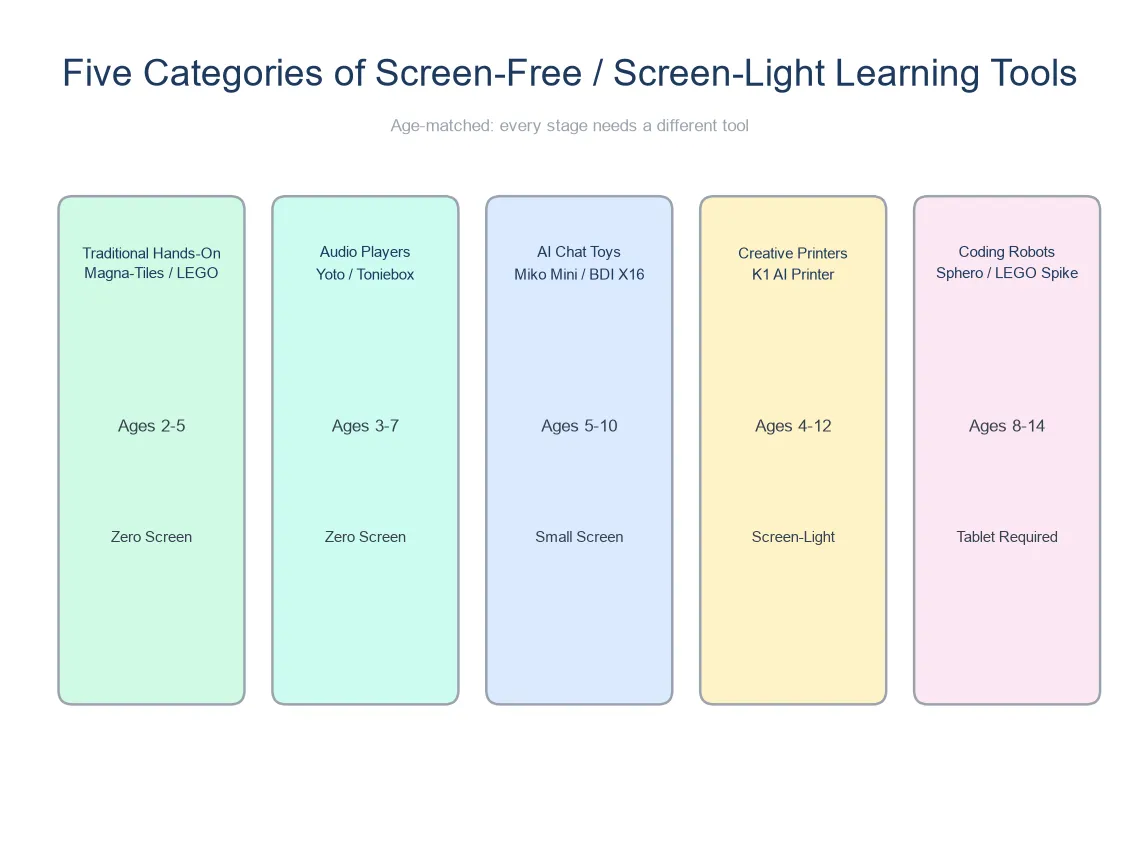
Traditional Hands-On: The Gold Standard for Young Children
Magna-Tiles, wooden blocks, Montessori sorting trays, Duplo, kinetic sand — these are the tools that child development experts universally recommend for children under 5. They work because the child is the engine: the toy does nothing on its own, and everything that happens depends on the child’s hands and imagination.
For ages 2 to 4, these tools should form the bulk of a child’s playtime. They build spatial reasoning, fine motor skills, and the kind of sustained attention that screens train children out of. The limitation is that they do not grow with the child — a five-year-old who has built every possible Magna-Tile castle for two years will eventually want a new challenge.
Audio Players: The Screen-Free Content Bridge
Yoto Player and Toniebox occupy a specific niche: screen-free access to stories, music, and podcasts. A child inserts a physical card or places a figurine on the device, and audio plays. There are no screens, no apps, and no way for a child to navigate to content a parent has not approved.
The Yoto Player, priced around $100, has become a favorite among parents who want their children to experience the immersive quality of audio storytelling without the visual stimulation of a screen. Children as young as two can operate it independently — swap a card, turn a dial, press play.
The trade-off is that audio players are primarily consumption tools. A child listens. Some models allow recording, but the core experience is passive. For building listening skills and calming bedtime routines, audio players excel. For creative output and active learning, they run into a ceiling once a child wants to do more than listen.
Voice-Triggered Output: When Speaking Creates Something
Stickerbox represents a newer category — a device with no screen at all that takes a child’s voice command and produces a physical sticker sheet. A child says “a cat wearing a superhero cape,” and the device prints a pre-designed sticker matching that description. It runs on wall power, costs $99–129, and carries COPPA and Kids Safe Seal certifications.
The simplicity is appealing for younger children — a three-year-old who cannot read or navigate an app can still speak a sticker idea and receive a tangible result. But the interaction is single-turn: command → print. There is no conversation, no follow-up, no adaptive learning. It is a creative output tool with AI-powered matching, not an interactive learning device.
For a child aged 3 to 5 who wants to decorate a notebook or a bedroom wall with custom stickers, Stickerbox fills that role well. For a child who asks “why” questions and wants to follow a thread of curiosity across multiple turns of conversation, it does not.
Screen-Light AI: The K1 AI Printer Approach
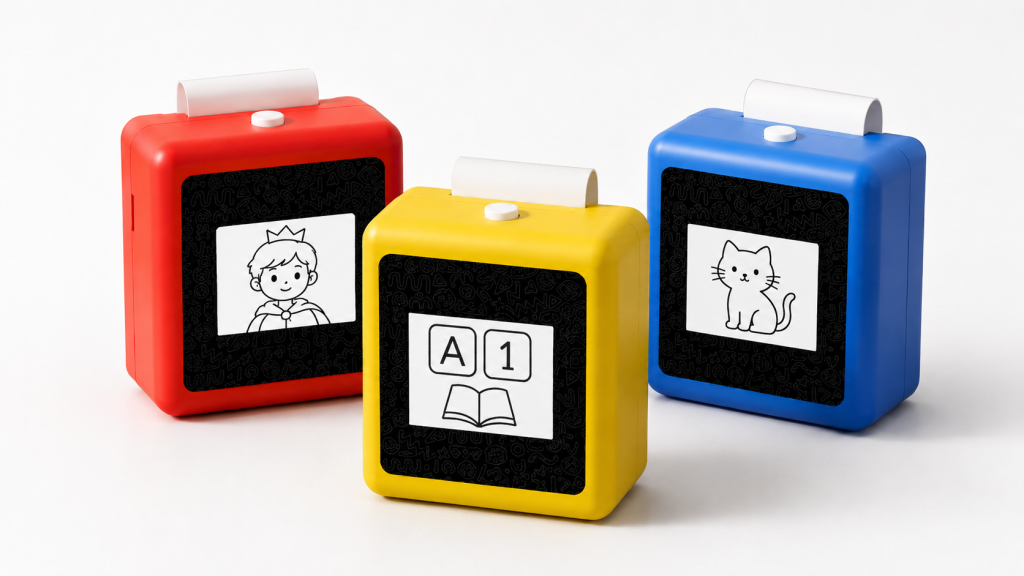
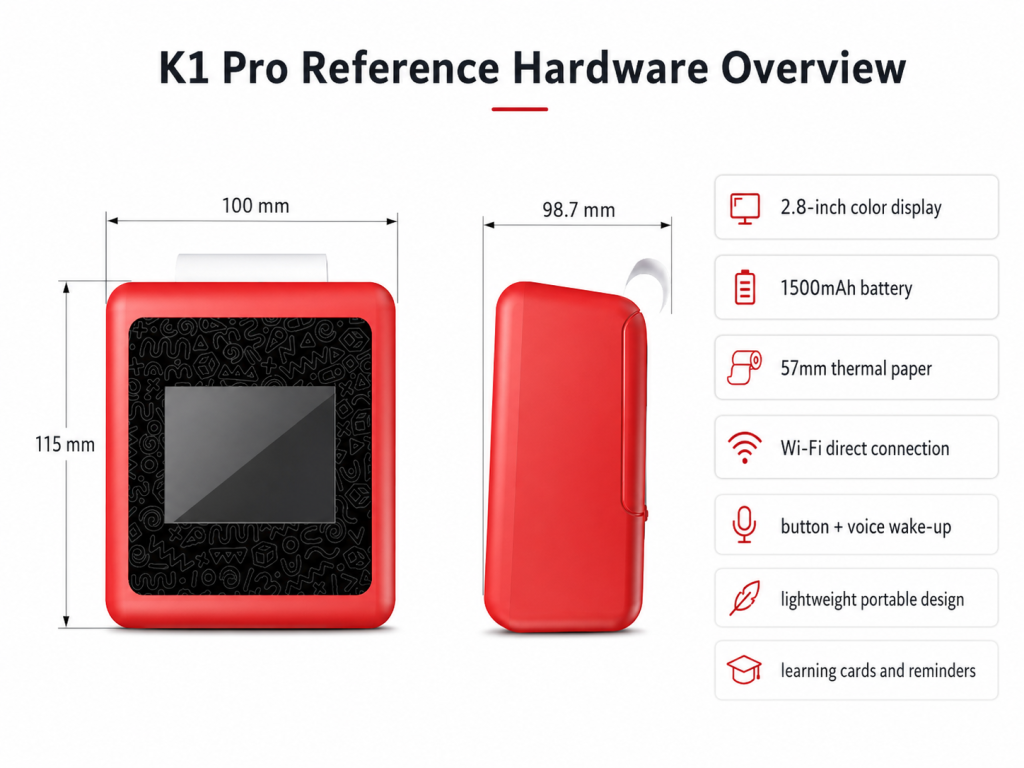
The K1 AI Printer, built on Yosiya’s reference platform, occupies a position that does not fit neatly into the “screen-free” category — and that is intentional. It is more accurately described as screen-light: the device has a 2.8-inch IPS display, but the display serves the interaction rather than being the interaction.
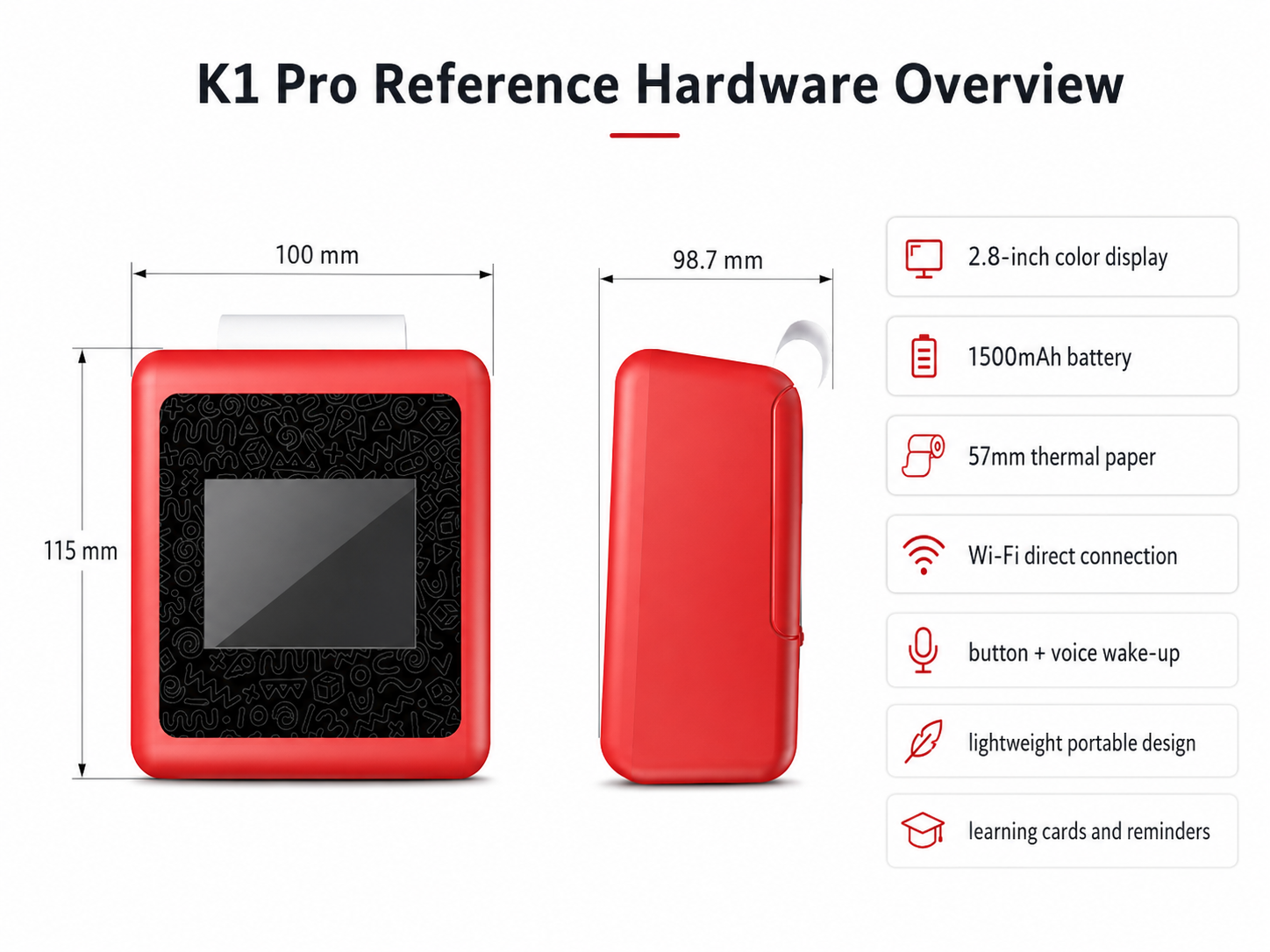
Here is how the interaction model works: a child speaks to the device. The AI processes the speech and responds conversationally — answering questions, telling stories, suggesting creative activities. The screen shows context: what the child said, what the AI is responding, a preview of what might be printed. When the exchange produces something worth keeping — a drawing concept, a learning card, a creative writing prompt — the thermal printer produces it on paper.
The voice is the input. The paper is the output. The screen is the dashboard — visible but not demanding.
Hardware specifications confirmed on the reference platform: 98 × 57 × 117mm body, 225g weight, 1,800mAh rechargeable battery, 57mm thermal print system supporting both standard paper and optional adhesive sticker paper. The device connects via Wi-Fi and Bluetooth. Four color options — China Red, Sky Blue, Yellow, and Pink — are available.
A K1 Pro version with reminder functions and early-learning content is under development but not included in the current standard offering. Parents evaluating the device should confirm the AI dialogue scope, language support, and content boundaries for the specific production version.
Is It Really “Screen-Free”?
No. And the honest answer serves parents better than a misleading one. The K1 has a 2.8-inch screen. If your definition of screen-free is “my child will not look at any illuminated display,” this device does not meet that standard.
But if your concern is about what the screen does to your child’s attention — whether they are staring at it for thirty minutes, whether the content is algorithmically driven, whether they are consuming rather than creating — the distinction between “screen as the activity” and “screen as a supporting tool” matters more than whether a screen exists at all.
A child using an iPad with an educational app is looking at a screen that is the entire experience. A child using the K1 is looking at a screen long enough to see what they said and what the printer is about to produce — and then their attention moves to the paper.
The screen-light category — devices where screens are auxiliary displays rather than primary interfaces — is likely to grow as more parents reject the tablet model without rejecting technology entirely.
Building a Screen-Light Learning Corner
If you are trying to reduce your child’s screen time without making them feel punished, the physical environment matters as much as the devices themselves. A screen-light corner works when it is more inviting than the iPad on the coffee table.
Here is what a functional setup looks like for a child aged 4 to 8, drawn from how parents in the M01 (after-school creative time) and M03 (homeschool learning) scenarios describe what works:
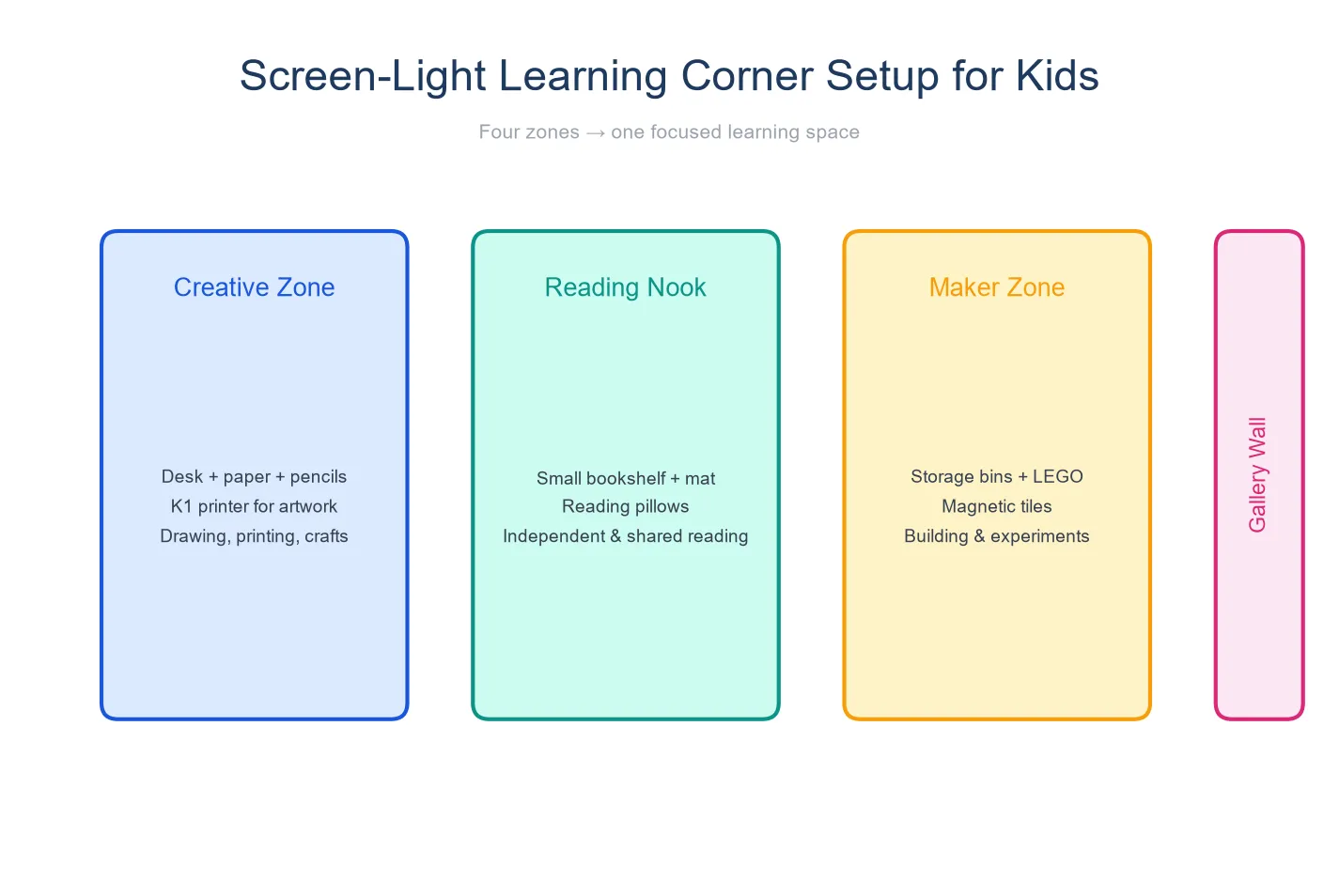
1. A dedicated surface at child height. A low table or desk where everything is within reach. The child should not need to ask an adult to get supplies.
2. A mix of tool types. Traditional hands-on materials (paper, crayons, blocks) sit alongside the tech tools (an audio player or a print-capable device). The message is that all of these are valid activities — not that tech replaces everything else.
3. Physical output on display. A corkboard, a magnetic strip on the wall, or a dedicated fridge section where printed creations, drawings, and cards get posted. When a child sees yesterday’s work displayed, it reinforces that creating has value beyond the moment of creation.
4. Tech charging at the corner, not the couch. When a device belongs on a desk and stays there, it is a studio tool. When it migrates to the couch or the car, it becomes a screen substitute. The physical location shapes the behavior.
5. A small inventory of consumables. Thermal paper rolls, sticker paper, blank notebooks, colored pencils — items that run out and need to be restocked. Consumables create natural stopping points and teach resource awareness in a way that infinite-scroll apps cannot.
When Each Category Works Best
There is no single device or toy that solves the screen-time problem for every child at every age. The right tool depends on the developmental stage and the specific problem you are trying to solve.
For ages 2–4, traditional hands-on materials (blocks, Magna-Tiles, kinetic sand, Montessori tools) and audio players (Yoto, Toniebox) should carry the bulk of independent playtime. Children at this age learn most from manipulating physical objects and listening to language. A device that produces something from voice input — like Stickerbox — can enter the mix around age 3 for short, supervised sessions.
For ages 4–7, the transition from “playing with things” to “creating things” begins. A child who can hold a conversation becomes ready for voice-driven tools that respond in context. Screen-light AI devices like the K1 AI Printer fit here — the child drives the interaction through speech, the device extends it with print output, and the screen plays a supporting role. Traditional materials do not disappear; they share the desk.
For ages 7–10, the child’s literacy and curiosity accelerate. Screen-light AI devices with configurable content scope — adjustable language complexity, subject focus, and creative mode — can grow with the child in a way that fixed-content tools cannot. A parent of a seven-year-old who is starting to write stories can adjust the AI to suggest writing prompts; a year later, the same device can shift toward science questions or foreign language practice.
FAQ
1. Can a screen-free device really be “AI”?
Yes — if “AI” means the device processes language and responds in context, rather than playing pre-recorded audio. The AI runs on cloud servers, not inside the device itself, which is why most AI-capable devices require Wi-Fi. The screen-free part refers to the child’s experience: voice is the input, and a speaker or a printer is the output. The AI is real; it is just invisible to the child.
2. Will my child get bored without a screen?
Possibly — and that is not a bad thing. Boredom is the precursor to creativity. A child who is used to having a screen fill every quiet moment will need an adjustment period of one to two weeks where “there is nothing to do” becomes “let me try the printer” or “I am going to build a castle.” Plan for the transition. Put the alternative tools where the tablet used to be. The boredom phase passes faster than most parents expect.
3. What age is screen-free learning most appropriate for?
The strongest evidence for screen-free approaches comes from children under 5, where the AAP recommends zero screen media (except video calls) before 18 months and a maximum of one hour per day of high-quality content for ages 2–5. For children 5 and older, the goal shifts from “no screens” to “screens with boundaries” — and the screen-light category (voice-first, print-output devices) offers a middle path that preserves the benefits of technology without making a screen the default activity.
4. Is thermal printing safe for kids?
Thermal printing uses heat to activate a chemical coating on special paper — no ink, no toner, no liquid chemicals. The printing process itself does not produce fumes or residues under normal operation. The paper used in children’s thermal printers should be BPA-free; parents should confirm this with the manufacturer. The K1 AI Printer uses standard 57mm thermal paper, and the reference platform specifications describe food-grade ABS+PC materials for the device body.
5. How does the K1 differ from an iPad with a printer?
Fundamentally: the iPad is a general-purpose device where printing is one of a thousand possible activities — and the ones that compete hardest for a child’s attention (games, videos, endless-scroll apps) are the ones the child will gravitate toward. The K1 is a single-purpose device: it talks with the child and prints things. There is no app store, no browser, no way to switch to YouTube. The interaction model — voice in, paper out — is the entire product. For a parent who wants technology in their child’s life without the constant negotiation over what the child is actually doing on the device, that difference is the whole point.
The Bottom Line
Screen-free learning is not about rejecting technology. It is about choosing tools where the child is the active participant and the device is the assistant — not the other way around. Traditional hands-on materials remain the best choice for the youngest children. Audio players fill the gap for screen-free storytelling. Voice-triggered output devices give young children a first taste of creative technology. And screen-light AI devices — where conversation and physical output take priority over display time — are beginning to define a category that did not exist five years ago.
The common thread across all of these tools: after twenty minutes, there is something to show for the time. A block tower. A printed story. A sticker-covered notebook. A child who says “look what I made.” That is the metric that matters, and it is the one no screen-time report will ever capture.
Download the screen-free learning setup guide with K1 specifications